
BuildCraft
Free to play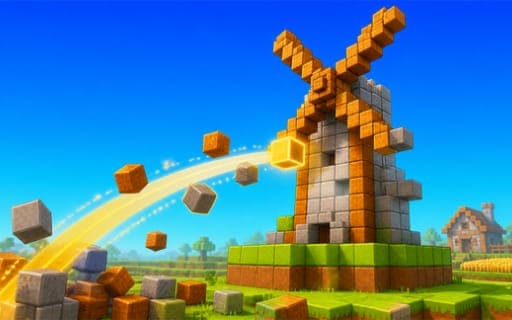
BuildCraft
Game by Playgama. The provider may show ads and use cookies. Learn more
- Category
- Puzzle
- Platform
- Web browser
- Provider
- Playgama
- Price
- Free to play
About BuildCraft
BuildCraft is a creative block-building game set in a colorful voxel world. Its guided projects give you a construction plan shown as a transparent outline of blocks, and your job is to fill every space in that outline until the house, well, windmill or other structure stands complete. Nothing hurries you, so each build goes at whatever pace suits you.
Outside the guided projects the world is yours to play with. You can walk, sprint, jump or switch on flight to get around, pull any material out of the creative inventory, and add or take away blocks wherever you like. That freedom extends to the land itself, which you can reshape before starting designs of your own. A hotbar with nine slots keeps materials within quick reach, and a Buildings menu lists the projects to choose from.
Game provided by Playgama
How to play BuildCraft
Objective
Finish guided builds by filling each transparent outline with blocks, then go on to reshape the land and invent structures of your own.
Controls
Desktop
- WASD: move
- Mouse: look around
- Space: jump
- Shift: sprint
- Hold the left mouse button: remove a block
- Right-click: place a block
- E or I: open the creative inventory
- 1–9: select a hotbar slot
- B: Buildings menu
- F: toggle flight
- Esc: settings
Mobile
- On-screen joystick: move
- Action buttons: camera, jumping, flight, block placing and removal, inventory and building choice
Getting started
- Press B, or use the matching action button on a phone, to open the Buildings menu and choose a house, well or windmill.
- Walk to the transparent outline with WASD or the joystick, looking around with the mouse.
- Open the creative inventory with E or I to pick a material, and switch between hotbar slots with keys 1 to 9.
- Right-click to place blocks inside the outline, and hold the left mouse button to remove any that land in the wrong spot.
- Press F to fly up to the higher parts of the structure, and keep filling until the outline is complete.
Tips
- Turn on flight with F for tall builds such as windmills, so you can place the upper blocks from the air instead of jumping up the sides.
- Keep the materials a project needs in hotbar slots 1 to 9, so swapping between them never means reopening the creative inventory.
- Removing a block only takes the left mouse button held down, so fix a misplaced piece at once instead of building on top of it.
- Once guided builds feel familiar, reshape the terrain first and then design your own structure using the same placing and removing controls.
Play in your browser. No download needed.
BuildCraft FAQ
How do you place and remove blocks in BuildCraft?
On a computer, right-click to place a block and hold the left mouse button to remove one. On a phone, action buttons handle both, alongside an on-screen joystick for moving around the world.
Can you fly in BuildCraft?
Yes. Press F to toggle flight on a computer, or use the fly action button on a phone. Flying makes it easier to reach the upper parts of tall structures and to look at a build from above.
What can you build in BuildCraft?
Guided projects include houses, wells, windmills and other structures, each shown as a transparent block outline to fill. Beyond those, you can reshape the terrain and create your own designs with any material in the creative inventory.
Does BuildCraft work on mobile?
Yes, BuildCraft runs in the browser on desktop and mobile. Phones get an on-screen joystick plus action buttons for looking around, jumping, placing or removing blocks, opening the inventory, picking buildings and flying.