
Destruction Simulator
Free to play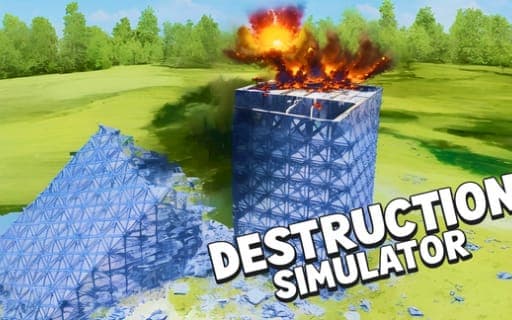
Destruction Simulator
Game by Playgama. The provider may show ads and use cookies. Learn more
- Category
- Strategy
- Platform
- Web browser
- Provider
- Playgama
- Price
- Free to play
About Destruction Simulator
Destruction Simulator is a sandbox for knocking buildings down. You load one of more than 30 prebuilt maps, or one you made in the map editor, pick a weapon and let the physics take each structure apart. The arsenal has around 13 explosives, including missiles, dynamite and bombs, along with cannon balls in several sizes, earthquake, tornado and singularity tools, and a custom gun editor for making your own.
Much of the appeal is control over the simulation itself. Time can be slowed, sped up or frozen mid-collapse, and gravity can be set low, high or switched off entirely. Visual settings let you hide explosion effects, show only smoke or keep just lights and flashes, while a debris limit fades out excess fragments and a destructibility setting adds more rubble when a building breaks too cleanly.
Game provided by Playgama
How to play Destruction Simulator
Objective
Pick a map and a weapon, then bring the buildings down however you like, adjusting time, gravity and debris settings to shape how each collapse plays out.
Controls
Desktop
- Left mouse button held with a swipe: rotate the camera
- W, A, S, D: move the camera
- Q and E: raise or lower the camera
- On-screen interface: choose weapons, tools and simulation settings
Mobile
- Fingers: move and turn the camera
- In-game buttons: weapons, tools and every other action
Getting started
- Choose one of the prebuilt maps to begin with; the map editor is there later if you want to build your own.
- Hold the left mouse button and swipe to turn the camera, then use W, A, S, D and Q or E to position it.
- Pick a weapon in the interface, for example dynamite, a missile or a cannon ball, and aim it at a structure.
- Slow time down during a collapse to follow the debris, or stop the simulation to look at a single moment from every side.
- Open the simulation settings to change gravity, the debris limit and how explosions are drawn if smoke hides the view.
Tips
- If explosion effects cover the debris you want to watch, switch the visualization to smoke only or lights and flashes, or turn it off completely.
- When the screen fills with fragments, enable the debris limit so pieces beyond the set amount fade out smoothly instead of piling up.
- Raise the destructibility level when a structure breaks into too few pieces; it is the setting meant for producing more rubble from each hit.
- Pair the earthquake, tornado or singularity tools with different gravity settings, since low, high and zero gravity each change how a building comes apart.
- Open the custom gun editor once the roughly 13 stock explosives feel familiar, and use the map editor to set up structures of your own.
Play in your browser. No download needed.
Destruction Simulator FAQ
How many maps does Destruction Simulator have?
There are more than 30 prebuilt maps ready to destroy. If those are not enough, the map editor lets you build your own environment and fill it with structures to knock down with any of the weapons.
Can you change gravity and time?
Yes. Time can be slowed down, sped up or stopped completely, and gravity can be set low or high or turned off as if you were in space. The two settings can be combined to study a collapse closely.
What weapons are available?
Around 13 explosives, including missiles, dynamite and bombs, plus cannon balls of different sizes and earthquake, tornado and singularity tools. A custom gun editor lets you build a weapon of your own on top of those.
How do you move the camera on a computer?
Hold the left mouse button while you swipe to spin the view, use W, A, S, D to move it, and press Q or E to raise or lower it. Everything else is done through the on-screen interface.